
In this guide
Choose the question before the cable
A television that occasionally pauses can make Ethernet sound like an instant cure. A cable may be a useful way to test the local connection, but it cannot prove every part of the stream will behave differently. Start with a narrower question: does this screen perform differently when the path to the router changes?
Wi-Fi is convenient when the screen is far from a network socket. Ethernet needs a compatible port or supported adapter and a practical cable route. Neither choice should be made from a headline speed alone. The best first step is to understand what your existing device supports and which comparison you can make safely.
Check the physical setup
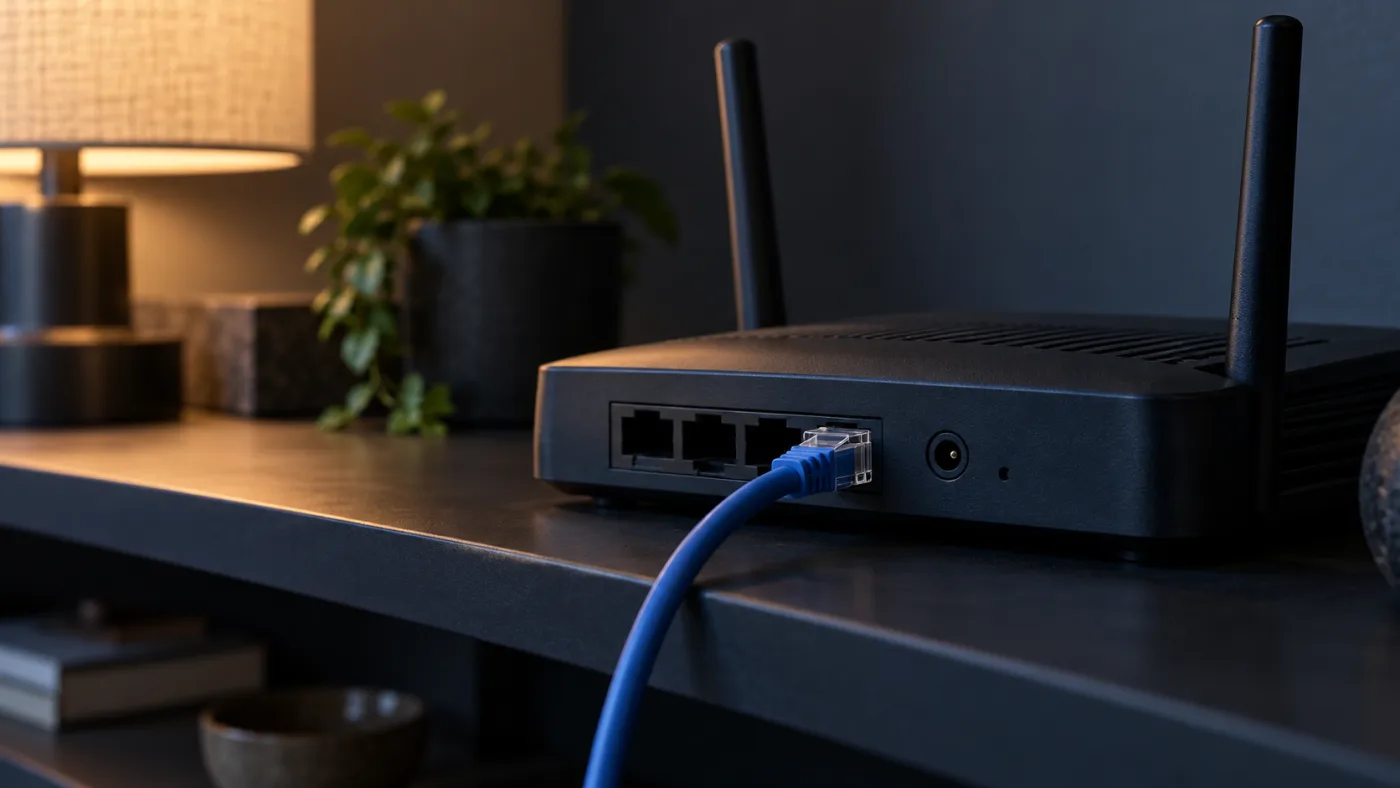
Look at the device manual for its networking options. The Ethernet connection may be on a separate streaming box rather than the television, and some devices need a manufacturer-supported adapter. Do not buy an arbitrary USB adapter because the connector fits. Physical compatibility and supported network operation are different questions.
If a cable can be tested, route it away from walkways and avoid creating a trip hazard. A temporary test does not require a permanent installation. Confirm that the device is actually using the wired connection in its settings rather than leaving Wi-Fi active and assuming the new cable has changed the path.
Keep the comparison fair
Use the same television, player and content before and after the change. Keep the test close in time and note what other household devices are doing. If you change the app, picture quality and network connection together, you will not know which difference affected the result. A useful test changes one meaningful variable.
Watch for the same symptom rather than looking only at a speed number. If the pause happened after several minutes, a few seconds of smooth playback is not a strong comparison. Repeat an ordinary viewing task long enough to see whether the original behaviour returns, without turning the test into an all-night exercise.
What the result can tell you
If wired playback behaves better in the comparison, the local wireless route deserves attention. Router placement or the connection reaching that room may be relevant. Google TV's official troubleshooting guide includes both moving the router closer and connecting by cable among its connection checks; that advice is not a Nautique-specific guarantee.
If both paths show the same symptom, do not conclude that you need a more expensive cable. Compare another channel or title, record the time, and consider whether the issue belongs to the device, player or particular content. The wired test has still been useful because it gives support a clearer account of what did not change.
Keep the route that suits the room
A successful temporary cable test does not automatically mean the room needs visible wiring forever. You can decide whether a tidy permanent route is practical, whether wireless placement can improve, or whether further device-specific advice is needed. Make that decision after observing the difference, not before spending money.
For support, report the device, the content, the symptom and whether the wired comparison changed it. Do not include access links or account passwords. The goal is a stable everyday route that fits your home. Testing Ethernet alongside Wi-Fi gives you evidence for that choice without claiming a cable solves every possible interruption.
Sources and further reading
Still having trouble?
Send the device, player, symptom and time. Leave passwords and playlist URLs out of your message.