
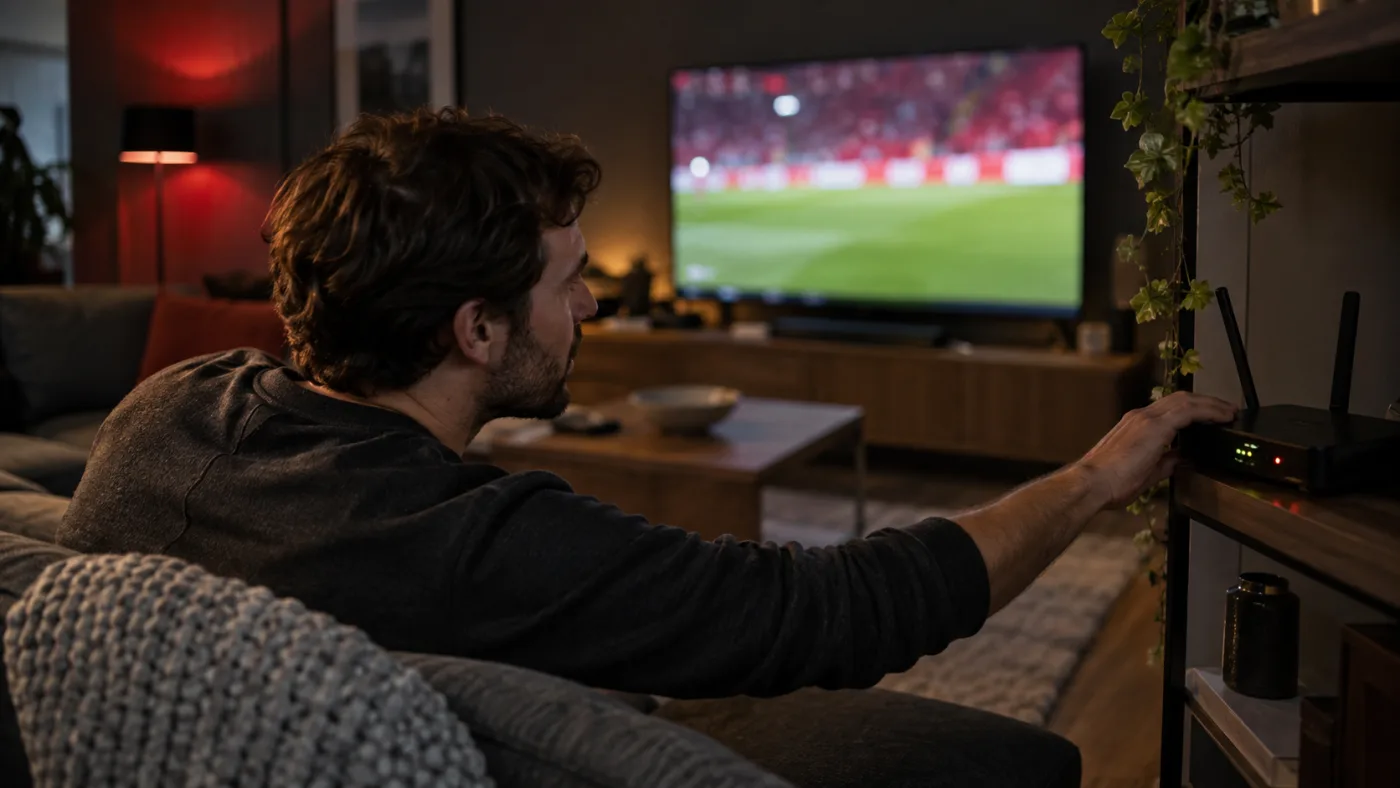
When a stream stops to load, it is tempting to change the player, the router and every picture setting at once. That usually makes it harder to know what helped. Start by observing exactly where the pause happens.
One channel or everything?
Try a second live channel and one on-demand title, if both are available to you. If only one item has trouble, write down its name and the time. If everything pauses, the device or connection deserves a closer look. This first split is more useful than a vague report that “the TV is broken”.
Also notice whether the picture pauses, drops in quality, or the whole player closes. Those are different symptoms. Keep a note of the device model and player name so support can reproduce your setup.
Check the device you are actually watching
Confirm that the television or streaming device is connected to your home network. If possible, test a second device on the same connection. If the second screen works while the first does not, restart the first device and check for its software updates. If both struggle, look at the shared connection before reinstalling a player.
A Wi-Fi connection can be uneven even when a speed test looks fine for a moment. Distance from the router, walls and other busy devices can affect what reaches the screen. Try moving closer to the router or using a wired connection if your device supports one. Change only one thing, then test the same content again.
Use a speed test as a clue
A speed test can show whether the connection is broadly working, but it cannot by itself prove what caused one playback pause. Run it near the device you watch on, then note the result and time. If the connection varies sharply, repeat it later before deciding that the player is the problem.
As a general streaming reference, Netflix's buffering guidance recommends checking the connection, restarting the device or home network, and improving Wi-Fi signal. Those are general troubleshooting steps, not Nautique TV speed requirements or a guarantee of performance.
Give support a useful report
If the problem remains, send four details in one message: the device and player, the content you tried, the time of the pause, and what you already changed. A screenshot of a visible error is useful. Leave passwords and playlist URLs out of the report; ask support how to check access safely if needed.
The aim is not to become your own network engineer. It is to avoid random changes and give the person helping you a clear starting point.
Technical reference: Netflix Help Center, “TV show or movie loads slowly or keeps buffering”. Its service-specific recommendations may differ from this service.
Still having trouble?
Send the device, player, symptom and time. Leave passwords and playlist URLs out of your message.